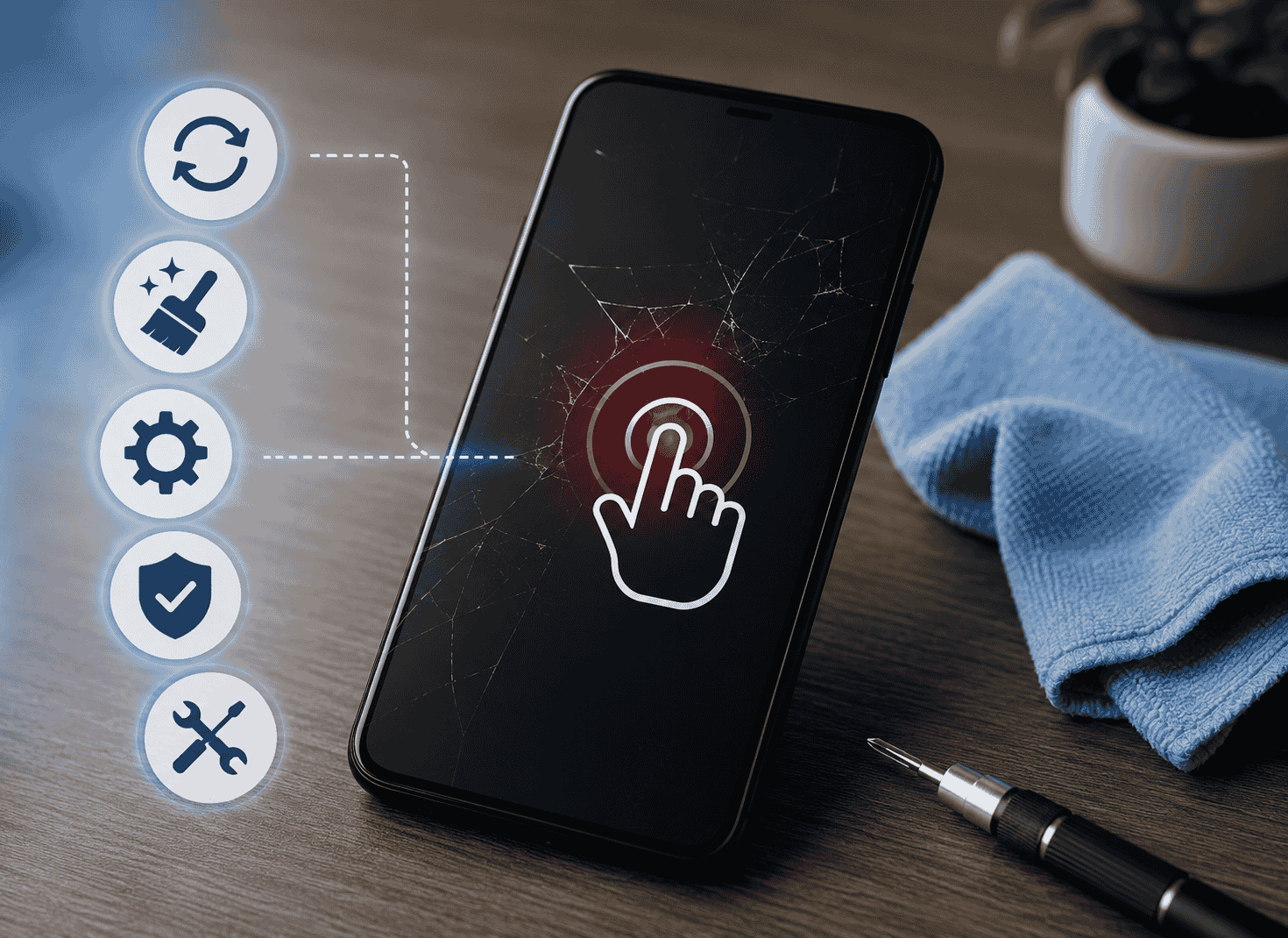
A phone touchscreen that suddenly stops responding can make even simple tasks impossible. Whether your screen freezes completely, only responds in certain areas, or registers touches inconsistently, the issue isn’t always as serious as it seems.
In many cases, an unresponsive touchscreen is caused by temporary software glitches, a faulty app, moisture, or a damaged screen protector—not necessarily a broken display. By troubleshooting the problem step by step, you can often restore normal touch functionality without paying for a repair.
This guide walks you through the most effective fixes, explains how to tell whether the issue is software or hardware, and helps you decide when professional repair is the best option.
Quick Answer
If your phone screen is unresponsive to touch, start by removing your case and screen protector, cleaning the display with a microfiber cloth, and restarting the device. If the problem continues, update your software, boot into Safe Mode (Android), or perform a factory reset after backing up your data. If the screen has physical damage, water exposure, or only certain areas don’t respond, the touchscreen digitizer may have failed and professional repair is likely required.
Signs Your Touchscreen Problem Is Software vs. Hardware
Knowing whether the issue is caused by software or hardware saves time and prevents unnecessary troubleshooting.
It’s probably a software problem if:
- The touchscreen stopped working after a software update.
- The phone responds normally after restarting.
- Only one app becomes unresponsive.
- The issue comes and goes randomly.
- Touch works again after clearing storage or closing apps.
- The phone functions normally in Safe Mode (Android).
Software-related touchscreen issues are often temporary and can usually be fixed without replacing any components.
It’s probably a hardware problem if:
- The screen is cracked or severely scratched.
- Only one section of the screen never responds.
- The phone was recently dropped.
- The device was exposed to water.
- The display works, but touch doesn’t.
- You notice screen lifting or bulging, which could indicate battery swelling.
Hardware problems generally require repair or component replacement because the touchscreen digitizer has likely been damaged.
Common Causes of an Unresponsive Touchscreen
Several factors can cause a touchscreen to stop responding.
Software bugs
A failed update, system crash, or temporary operating system glitch can freeze touchscreen input.
Problematic apps
Some poorly optimized or incompatible apps can interfere with normal touch functionality.
Low available memory
When your phone runs out of RAM or storage, it may become sluggish or stop responding to touch.
Dirty screen
Oil, sweat, dirt, and moisture interfere with the capacitive sensors that detect your fingers.
Screen protector issues
Low-quality, damaged, or poorly installed screen protectors sometimes reduce touch sensitivity.
Physical damage
Drops can damage the touchscreen layer even if the display still looks perfectly normal.
Water exposure
Even water-resistant phones can experience temporary or permanent touchscreen problems after liquid exposure.
Step-by-Step Fixes (Ordered From Easiest to Most Advanced)
Work through these fixes in order. Stop once your touchscreen begins responding normally.
1. Clean the Screen
Use a clean microfiber cloth to remove fingerprints, dirt, and moisture.
Avoid household cleaners, paper towels, or abrasive materials that may damage the display coating.
2. Remove Your Case and Screen Protector
Thick phone cases or poorly fitted tempered glass protectors sometimes interfere with edge sensitivity.
Remove both temporarily and test the screen again.
3. Restart Your Phone
Restarting clears temporary software errors that may prevent touch input.
If the screen is completely frozen, perform a force restart using your device’s button combination.
4. Charge the Phone
Extremely low battery levels can sometimes cause unexpected system behavior.
Connect the phone to its original charger for at least 20 minutes before testing again.
5. Close Background Apps
Too many running applications consume memory and processing power.
After restarting, avoid opening multiple apps immediately and see whether the touchscreen behaves normally.
6. Update the Operating System
Manufacturers regularly release updates that fix touchscreen bugs, improve stability, and resolve compatibility issues.
If touch still works intermittently, install any available software updates.
7. Free Up Storage Space
A nearly full device may struggle to perform properly.
Delete unnecessary files, old videos, downloads, or unused applications to improve overall responsiveness.
8. Boot Into Safe Mode (Android)
Safe Mode temporarily disables third-party apps.
If the touchscreen works normally in Safe Mode, a recently installed application is likely causing the problem.
Restart normally and uninstall suspicious apps one at a time.
9. Back Up Your Data and Factory Reset
If none of the previous fixes work and you suspect a software issue, perform a factory reset.
Back up important files first because this process erases everything stored on the phone.
If the touchscreen still doesn’t work after a clean reset, the issue is almost certainly hardware-related.
10. Seek Professional Repair
When software troubleshooting fails, replacing the touchscreen or display assembly is usually the only permanent solution.
Android-Specific Troubleshooting
Android phones vary between manufacturers, but these additional checks often help.
Test Safe Mode
If touch works normally in Safe Mode, uninstall recently downloaded apps that may be causing conflicts.
Clear System Cache (where available)
Some Android devices allow temporary system files to be cleared after major updates, helping resolve unexpected performance issues.
Check Accessibility Settings
Certain accessibility features or gesture settings can unintentionally affect touchscreen behavior.
Install Manufacturer Updates
Samsung, Google Pixel, OnePlus, Xiaomi, Motorola, and other manufacturers frequently release patches addressing touchscreen responsiveness.
iPhone-Specific Troubleshooting
If you’re using an iPhone, try these additional steps.
Force Restart
A force restart often resolves temporary iOS glitches without deleting any data.
Update iOS
Apple regularly releases bug fixes that improve touchscreen performance.
Remove Unsupported Accessories
Certain charging accessories or damaged Lightning or USB-C cables can occasionally interfere with touchscreen responsiveness while charging.
Restore Using Recovery Mode
If software corruption is suspected and normal troubleshooting fails, restoring iOS through Recovery Mode may resolve the issue after you’ve backed up your data.
How to Test Whether the Digitizer Has Failed
The display and touchscreen are two different components.
A phone can display images perfectly while the touch layer underneath no longer detects your finger.
The digitizer may have failed if:
- The display looks normal but touch never responds.
- Only one strip or corner of the screen is unresponsive.
- The same area fails every time you test it.
- Restarting and resetting make no difference.
- The problem began immediately after the phone was dropped.
If these symptoms match your device, software fixes are unlikely to solve the problem.
What to Do After Water Damage
If your phone was exposed to water, act quickly.
- Turn the phone off immediately.
- Remove any removable accessories such as the SIM tray if appropriate for your device.
- Dry the exterior with a soft cloth.
- Leave the phone in a dry, well-ventilated area.
- Wait until the device is completely dry before charging it.
Avoid using heat sources such as hair dryers or placing the phone in an oven, as excessive heat can damage internal components.
Even if the display appears normal, moisture inside the phone can affect touchscreen performance hours or days later.
What Not to Do
Avoid these common mistakes during troubleshooting.
- Don’t repeatedly tap or press the screen with excessive force.
- Don’t continue charging a phone that becomes unusually hot.
- Don’t install random “touchscreen calibration” apps unless recommended by the device manufacturer.
- Don’t open the phone yourself unless you have repair experience.
- Don’t perform a factory reset before backing up your important data if the touchscreen still works occasionally.
These actions may make the problem worse or increase the risk of data loss.
When to Repair vs. Replace the Phone
Professional repair is usually the best option if:
- The screen is cracked.
- The touchscreen remains unresponsive after a factory reset.
- The phone suffered impact damage.
- Water entered the device.
- The display is lifting away from the frame.
- Only specific areas of the screen consistently fail.
Replacing the entire phone may be the better choice if the device is several years old, has multiple hardware problems, or the repair cost approaches the value of a newer model.
Prevention Tips
Although touchscreen problems aren’t always avoidable, these habits reduce the risk.
- Use a quality screen protector.
- Choose a well-fitting protective case.
- Keep the screen clean and dry.
- Avoid exposing the phone to extreme heat or cold.
- Install software updates regularly.
- Don’t overload the device with unnecessary apps.
- Keep sufficient free storage available.
- Handle the phone carefully to reduce accidental drops.
Regular maintenance helps keep both the software and hardware functioning reliably.
Frequently Asked Questions
Why is my phone screen on but not responding to touch?
This usually indicates either a software crash or a damaged touchscreen digitizer. Restart the phone first. If the display works but touch never responds, hardware repair may be necessary.
Can a cracked screen cause touch problems?
Yes. Even a small crack can damage the touchscreen layer beneath the glass, causing dead zones, delayed responses, or complete touch failure.
Why does my touchscreen only work sometimes?
Intermittent touch problems are commonly caused by software bugs, low memory, moisture, overheating, or an aging touchscreen component.
Will a factory reset fix an unresponsive touchscreen?
A factory reset can resolve software-related touchscreen issues, but it won’t repair physical damage or a failed digitizer.
Can a screen protector stop touch from working?
Yes. Poor-quality, damaged, or improperly installed screen protectors can reduce touch sensitivity, especially around the edges of the display.
Is it safe to keep using a phone with a partially working touchscreen?
If the problem is caused by physical damage or battery swelling, continuing to use the phone may worsen the issue. It’s best to have the device inspected as soon as possible.
Final Thoughts
An unresponsive touchscreen doesn’t always mean your phone is beyond repair. In many cases, simple fixes like cleaning the display, restarting the device, removing a faulty screen protector, or updating the operating system are enough to restore normal functionality.
If those steps don’t solve the problem, pay close attention to the symptoms. A touchscreen that consistently fails in the same area, stops responding after a drop, or remains unresponsive even after a factory reset is often a sign of hardware damage. Identifying the root cause early helps you avoid unnecessary troubleshooting and decide whether professional repair or device replacement is the most practical solution.