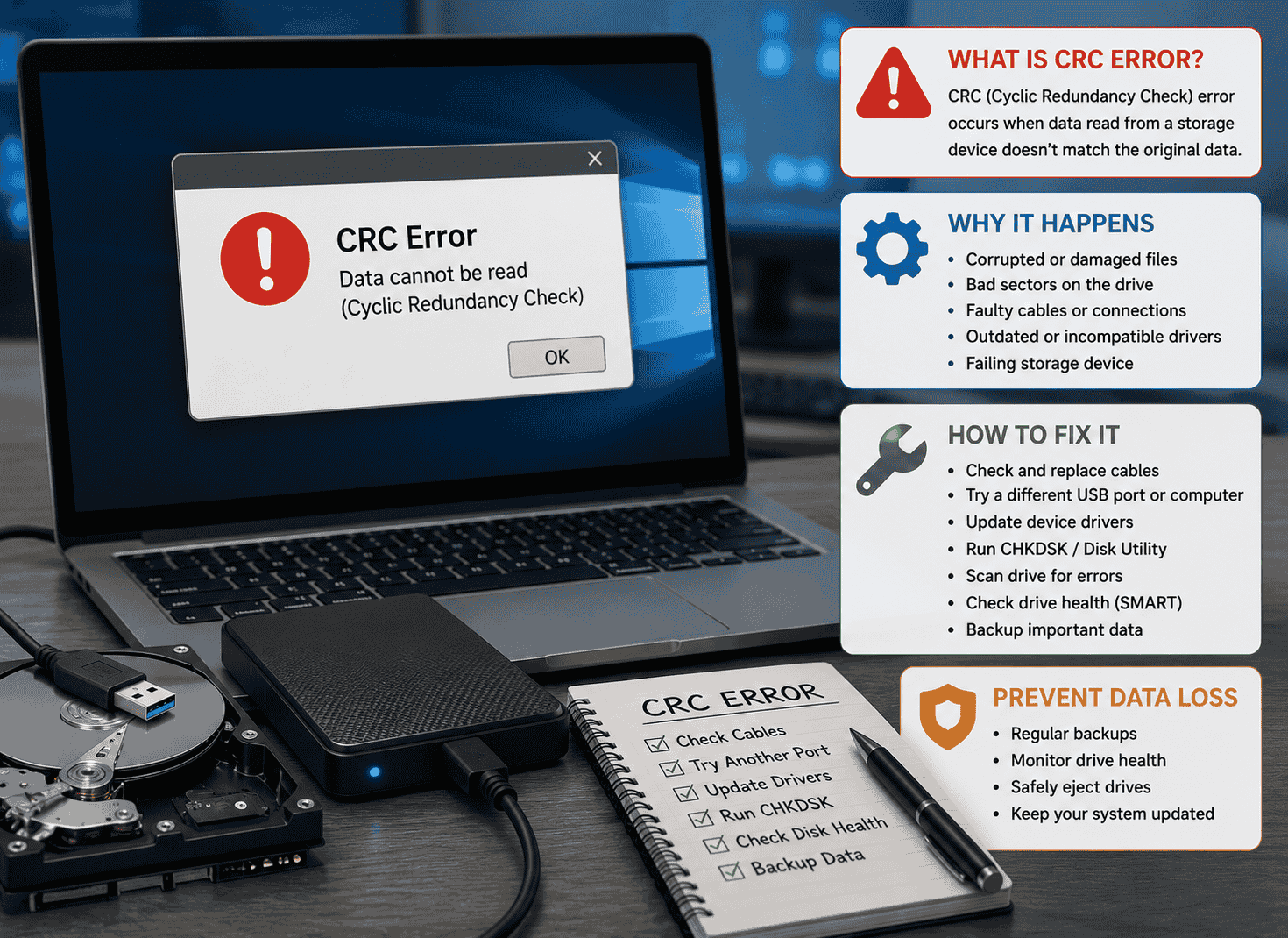
A CRC error means your computer read data from a drive and the result didn’t match what was originally stored there. It’s one of the most common warning signs that a hard drive, USB stick, or file has become corrupted — and in some cases, it’s an early signal that a drive is starting to fail.
This guide explains what a CRC error actually is, why it shows up, and how to fix it safely without making the underlying problem worse.
Quick Facts: CRC Error
- Full name: Cyclic Redundancy Check error
- What it means: Data read from a drive or file doesn’t match its expected checksum
- Most common trigger: Bad sectors, damaged cables, or a failing drive
- Where it appears: External hard drives, USB drives, internal disks, ZIP files, and network devices
- Is it serious? Sometimes minor and fixable; sometimes an early sign of drive failure
- First step if you see it: Stop writing new data to the drive and back up what you can before running repairs
What Is a CRC Error?
A Cyclic Redundancy Check, or CRC, is a math-based method computers use to confirm that data hasn’t changed by accident. When data is written to a drive or sent across a network, the system calculates a short numeric value — a checksum — based on that data. Later, when the data is read back or received, the system recalculates the checksum and compares it to the original.
If the two values match, the data is intact. If they don’t match, the system reports a CRC error. It’s the computer’s way of saying, “What I just read doesn’t look like what was actually written here.”
On Windows, this often appears as a specific message:
“Data error (cyclic redundancy check)”
You might see it while copying a file, opening a folder, extracting a ZIP archive, or trying to access an entire drive.
Where You’ll See CRC Errors
CRC checks run constantly in the background of modern computing, so the error can surface in several different contexts. The cause — and the right fix — depends on which one you’re dealing with.
| Where It Happens | What It Usually Means | First Move |
|---|---|---|
| External hard drive or USB flash drive | Bad sectors, damaged connector, or drive wear | Try a different cable and USB port first |
| Internal hard drive or SSD | Aging drive, failing sectors, or file system damage | Run a disk check without writing new files |
| A single file (ZIP, video, document) | That specific file was corrupted during download, transfer, or storage | Re-download or re-copy the file from its original source |
| Network switch, router, or NIC logs | Interference, a faulty cable, or a bad port during data transmission | Swap the cable and check for electrical interference nearby |
| Optical disc (CD/DVD) | Scratches or degraded disc surface | Try reading the disc on a different drive |
Why CRC Errors Happen
A CRC error is a symptom, not a root cause. The underlying reasons usually fall into one of these categories:
- Bad sectors. Small areas of a drive become physically unreadable, so the data stored there no longer matches its checksum.
- Damaged or loose cables and connectors. A faulty USB or SATA cable can corrupt data as it transfers, even if the drive itself is healthy.
- Unsafe removal. Pulling out a USB drive or external hard drive while it’s still writing data can leave files incomplete or corrupted.
- Drive aging or mechanical wear. Hard drives have moving parts that degrade over time, increasing the odds of read errors.
- Interrupted file transfers. A copy or download that gets cut off midway can leave a file with a checksum mismatch.
- Malware or software conflicts. In rare cases, corrupted system files or malicious software interfere with how data is read and written.
- Electrical interference. On networks, nearby electronics or poor cable shielding can distort the signal enough to trigger CRC mismatches.
Is a CRC Error Serious?
It depends on what’s causing it. A single CRC error on one file — say, a ZIP archive that didn’t finish downloading — is usually harmless. Re-downloading the file typically resolves it.
A CRC error on an entire drive is a bigger concern. It often means the drive has physical bad sectors or is showing early signs of failure. Treat this version of the error as a data-loss warning, not just an inconvenience.
How to Fix a CRC Error
Work through these steps in order. Stop and back up your data as soon as you’re able to access it — don’t wait until the end.
1. Stop writing new data to the drive
Every write operation increases the chance of overwriting recoverable data, especially if bad sectors are involved. Pause backups, downloads, or installations pointed at that drive.
2. Check the physical connection
Swap the cable and try a different USB port or SATA connector. A surprising number of CRC errors trace back to a damaged cable rather than the drive itself.
3. Try the drive on another computer
If possible, connect the drive to a different machine. This helps confirm whether the problem is with the drive or with the original computer’s port, drivers, or controller.
4. Back up what you can access first
Before running any repair tool, copy any files you can still open to a separate, healthy drive. Repair tools can sometimes make a failing drive less accessible, so getting your data off first protects you either way.
5. Run CHKDSK to check for file system errors
On Windows, open Command Prompt as an administrator and run:
chkdsk D: /f /r
Replace D: with your drive’s letter. This scans for bad sectors and attempts to repair file system errors. It can take a long time on larger drives, and it works best on drives with mostly logical (not physical) damage.
6. Check the drive’s SMART status
Most drives track their own health data through SMART (Self-Monitoring, Analysis, and Reporting Technology). Free tools like CrystalDiskInfo can show you whether the drive is reporting warning signs, such as a rising bad sector count.
7. Use data recovery software for files CHKDSK can’t reach
If some files remain inaccessible, dedicated recovery software can often pull data from areas CHKDSK couldn’t repair. Run this against a copy or clone of the drive when the data is important, rather than the original.
8. Call in a professional recovery service for critical data
If the drive is making clicking or grinding noises, isn’t recognized by your computer at all, or holds data you can’t afford to lose, stop the DIY process. Professional recovery labs can work with physically damaged drives in ways consumer software can’t.
What Fixing a CRC Error Is Not
- It’s not always a formatting problem. Reformatting wipes the drive’s file structure and can make data recovery far harder. Only format as a last resort, after you’ve backed up what you can.
- It’s not something CHKDSK always resolves. CHKDSK helps with logical file system damage, but it can’t repair physically failing hardware.
- It’s not a guarantee your files are gone. A CRC error on a file or folder doesn’t always mean total data loss — many files are still recoverable with the right approach.
- It’s not something you should repeatedly retry through normal copying. Retrying a failed copy over and over on a physically damaged drive adds more read stress, which can accelerate failure.
Frequently Asked Questions
Does a CRC error mean my hard drive is dying? Not always. A single file showing a CRC error, especially something downloaded or transferred, is often unrelated to drive health. But a CRC error affecting an entire drive or multiple files is a common early symptom of drive failure and should be treated seriously.
Can I fix a CRC error without losing my data? Often, yes — especially if you back up accessible files before running any repair tool. Bad sectors don’t automatically erase everything on a drive; they typically affect specific areas.
What causes a CRC error when copying files? It usually means the source file, the destination drive, or the connection between them introduced an error during the copy. Bad sectors, a damaged cable, or an interrupted transfer are the most common culprits.
Is a CRC error the same as a bad sector? Not exactly. A bad sector is a physical defect on a drive. A CRC error is the symptom you see when the system tries to read data from a damaged or corrupted area — bad sectors are one common cause of it.
How do I fix a CRC error without formatting the drive? Try a different cable and port first, then run CHKDSK with the /f /r flags to repair file system errors and mark bad sectors, without wiping the drive. Reserve formatting for drives you’ve already backed up or given up on repairing.
Can a CRC error happen on a brand-new drive? Yes. New drives can have manufacturing defects, arrive with damaged cables, or be affected by an unsafe removal shortly after setup. It’s less common than on older drives, but not impossible.
Key Takeaway
A CRC error is your system telling you that data doesn’t match what it should. Sometimes that’s a minor, one-file problem you can fix by re-downloading or re-copying. Other times, it’s an early warning that a drive is failing. Back up what you can access first, work through repairs in order of least to most invasive, and treat repeated or drive-wide CRC errors as a signal to protect your data before it’s too late.