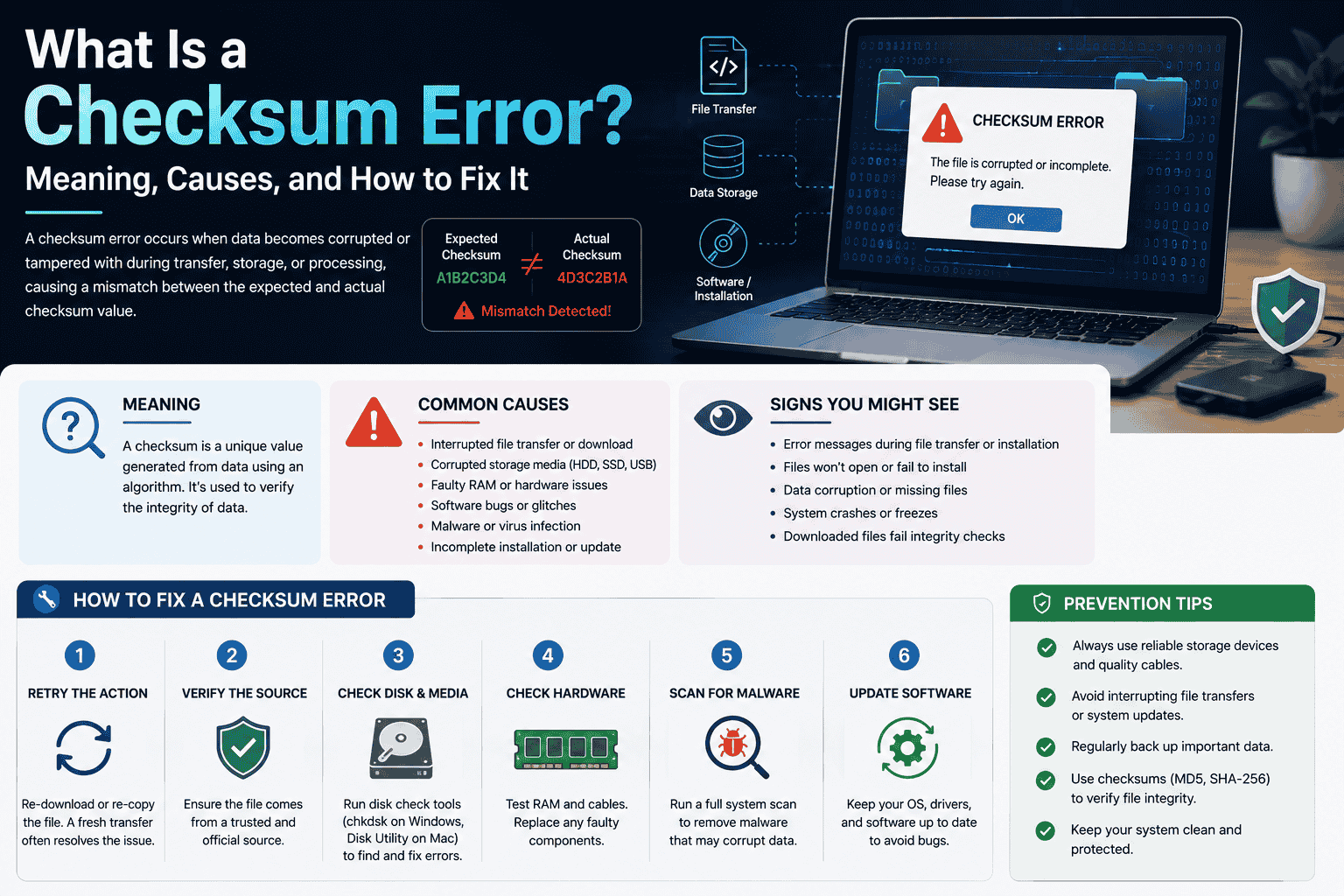
A checksum error means a file, message, or piece of data didn’t arrive the way it was supposed to. Somewhere between being saved and being opened — or between being sent and being received — one or more bits got changed, dropped, or scrambled. The computer noticed because the “fingerprint” it expected didn’t match the fingerprint it actually got, so it flagged the mismatch instead of quietly using broken data.
That’s the short answer. Here’s the longer one, in plain language, with real examples of where this pops up and what to actually do about it.
First, a quick refresher: what is a checksum?
Think of a checksum as a receipt for data.
When a file or message is created, a small program runs a calculation over every bit inside it. That calculation spits out a short code — the checksum — which acts like a fingerprint for that exact data. Change even one character inside the file, and the fingerprint comes out completely different.
That fingerprint travels along with the data. Later, whoever receives or opens the file runs the same calculation again and compares the new result to the original one.
- Fingerprints match → the data is intact.
- Fingerprints don’t match → something changed along the way, and that’s a checksum error.
It’s the same idea as sealing a letter with wax. If the seal is broken when it arrives, you know someone (or something) tampered with it, even if you never watched it happen.
So what exactly is a checksum error?
A checksum error is simply the moment the two fingerprints don’t line up. The system compares the checksum it calculated against the one it was expecting, sees a mismatch, and raises a flag instead of pretending everything is fine.
It’s not a guess, not a warning about something that might be wrong. It’s a direct signal that at least one bit of data has been altered from its original state — even if the file still looks normal on the surface.
Importantly, a checksum error only tells you that something changed. It doesn’t tell you what changed, why, or how bad the damage is. That part depends on where the error shows up.
Where checksum errors actually show up
The term gets used across very different situations, and each one has its own flavor. Here are the places people run into it most.
1. Downloading files
You download a program, an ISO image, or a compressed .zip file, and either the download tool or the file itself reports a checksum mismatch. This usually means the download was interrupted, part of it got corrupted in transit, or the source file wasn’t 100% complete.
2. Installing software or games
Installers and game launchers often verify every file against a known checksum before letting the install finish. A checksum error here usually points to a corrupted installer file or missing/damaged files inside the package.
3. Torrents and large file transfers
Torrent clients break files into small pieces and check each piece’s checksum as it arrives. A “hash failed” or checksum error on a piece just means that specific chunk needs to be re-downloaded — not that the whole file is ruined.
4. Computer startup (BIOS/CMOS checksum error)
Older desktops and some motherboards store their startup settings in a small memory chip. On boot, the system checks a checksum for those settings. If it doesn’t match, you’ll see a “CMOS checksum error” or “BIOS checksum error” message. This is usually caused by a dying CMOS battery, a recent BIOS update, a power interruption, or overclocking settings that didn’t save cleanly.
5. Hard drives, backups, and storage systems
Storage systems like RAID arrays and file systems such as ZFS constantly checksum the data they hold, so they can catch silent corruption — bits that flip on the disk itself with no obvious cause. A checksum error here can be an early sign of a failing drive.
6. Network transmissions
Protocols like TCP and UDP attach a checksum to nearly every packet of data sent across a network. If noise, interference, or a faulty cable changes even one bit mid-transmission, the checksum won’t match and the packet gets rejected or re-sent automatically, usually without you ever seeing it happen.
What causes checksum errors
Across all of these situations, the underlying causes fall into a handful of buckets:
- Interrupted transfers — a download or transfer that got cut off partway through (bad Wi-Fi, closed laptop lid, power outage).
- Corrupted source files — the original file was already damaged before you even got it.
- Faulty storage hardware — a failing hard drive, USB stick, or memory chip that occasionally writes or reads the wrong bits.
- Electrical issues — power surges, a dying CMOS battery, or unstable overclocking settings on a motherboard.
- Interference during transmission — signal noise on a network or cable that flips a bit mid-transfer.
- Software bugs — rare, but a poorly written program can calculate or apply a checksum incorrectly.
Is a checksum error dangerous?
Not by itself. A checksum error is a warning light, not the fire. It exists specifically so that damaged data gets caught before it’s trusted or used — which is a good thing.
The real question is what caused it. A one-off checksum error on a download you can just re-download is nothing to worry about. Repeated checksum errors on the same hard drive, however, are worth paying attention to, since they can be an early symptom of a drive that’s starting to fail.
How to fix a checksum error
The fix depends on where the error is happening, but the general troubleshooting order is the same everywhere: rule out the easy causes first, then work down to hardware.
- If it’s a download, install, or torrent:
- Delete the file and download it again from the original source.
- Check your internet connection for drops or interruptions during the transfer.
- If it fails repeatedly from the same source, try a different mirror or source link — the original file may be the one that’s damaged.
- Temporarily disable antivirus or firewall software that might be interfering mid-download, then re-enable it afterward.
- If it’s a BIOS/CMOS checksum error on startup:
- Enter the BIOS/CMOS setup menu (usually by pressing Delete, F2, or Esc at startup).
- Reset the settings to defaults, then save and exit.
- If it keeps happening after every restart, replace the small coin-cell CMOS battery on the motherboard — this is the most common cause.
- If you recently flashed or updated the BIOS, try reflashing it, ideally with a stable power source.
- If it’s a hard drive or storage system:
- Back up your important data immediately — don’t wait to see if it happens again.
- Run the drive manufacturer’s diagnostic tool, or check the drive’s S.M.A.R.T. status.
- If errors keep recurring on the same drive, plan to replace it rather than keep repairing around it.
If it’s a network transfer: This one is usually invisible and self-healing — the protocol automatically re-sends the affected packet. If you’re seeing frequent checksum errors reported on a network device or router log, it’s worth checking cables, Wi-Fi interference, or a network card driver update.
How to prevent checksum errors
- Download files from stable connections rather than spotty public Wi-Fi.
- Keep a surge protector on desktop PCs to avoid power-related corruption.
- Replace an aging CMOS battery proactively rather than waiting for the error to appear (they typically last 3–5 years).
- Run periodic disk health checks on important drives, especially older ones.
- Keep backups in more than one location, so a single corrupted copy is never your only copy.
Quick FAQ
Is a checksum error the same as a virus? No. A checksum error only means data doesn’t match its expected fingerprint — it doesn’t identify malware. Corruption and malicious tampering can both trigger one, but so can a simple interrupted download.
Can I just ignore a checksum error? For a one-time download issue, re-downloading usually resolves it with no lasting harm. For a hard drive or BIOS that keeps throwing checksum errors, ignoring it is risky — it’s usually an early warning sign.
Does a checksum error mean my file is permanently broken? Not necessarily. In most cases (downloads, torrents, installers), the fix is simply getting a fresh, uncorrupted copy of the same file. The original source is often still fine — only your local copy was affected.
The bottom line
A checksum error is your system telling you, in the most literal way possible, that the data it just checked doesn’t match what it was supposed to be. It’s not a mysterious failure — it’s a built-in safety check doing exactly what it was designed to do. Most of the time, the fix is as simple as trying again. When it keeps happening on the same device, treat it as an early signal to check your hardware before it becomes a bigger problem.