If you’re seeing the “DNS server not responding” error, your device can’t connect domain names (like google.com) to actual IP addresses. The good news: this is usually easy to fix.
Quick Fixes (Try These First)
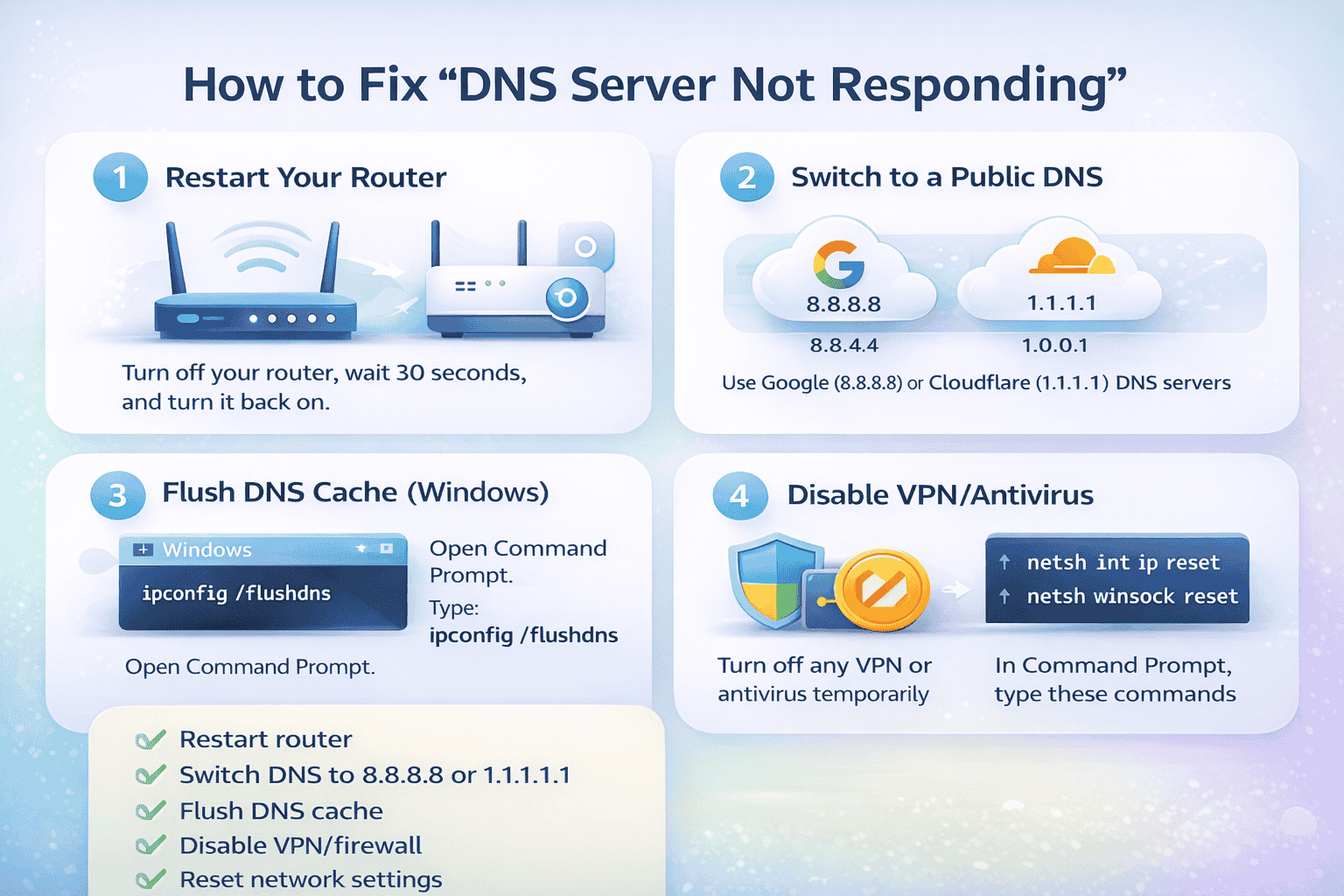
1. Restart Your Router and Device
- Turn off your Wi-Fi router
- Wait 30–60 seconds
- Turn it back on
- Restart your computer or phone
This solves most DNS issues instantly.
2. Switch to a Public DNS Server
Your ISP’s DNS may be down. Use a faster, reliable one:
- Google DNS
- 8.8.8.8
- 8.8.4.4
- Cloudflare DNS
- 1.1.1.1
- 1.0.0.1
📌 On Windows:
- Go to Network Settings → Change Adapter Options
- Right-click your connection → Properties
- Select Internet Protocol Version 4 (IPv4)
- Enter DNS manually
3. Flush DNS Cache
Clears outdated or broken DNS records.
📌 On Windows:
- Open Command Prompt (as Admin)
- Run:
ipconfig /flushdns
4. Disable VPN or Antivirus Temporarily
- VPNs and firewalls can block DNS requests
- Turn them off and test your connection
5. Try a Different Browser or Device
- If it works elsewhere, the issue is device-specific
- Clear browser cache if needed
6. Reset Network Settings
If nothing works:
📌 On Windows:
netsh int ip reset
netsh winsock reset
Then restart your PC.
Common Causes
- ISP DNS outage
- Router issues
- Incorrect network settings
- VPN/firewall conflicts
- Corrupted DNS cache
Simple Explanation
Think of DNS like a phonebook for the internet.
If it stops working, your device doesn’t know how to find websites—even if your internet is connected.
Final Tip
If the issue still isn’t fixed:
- Contact your internet provider if still the DNS server is not responding
- Or try accessing sites using mobile data to confirm if it’s a network issue
Quick Summary
- Restart router ✅
- Switch DNS (8.8.8.8 or 1.1.1.1) ✅
- Flush DNS cache ✅
- Disable VPN/firewall ✅
- Reset network settings ✅