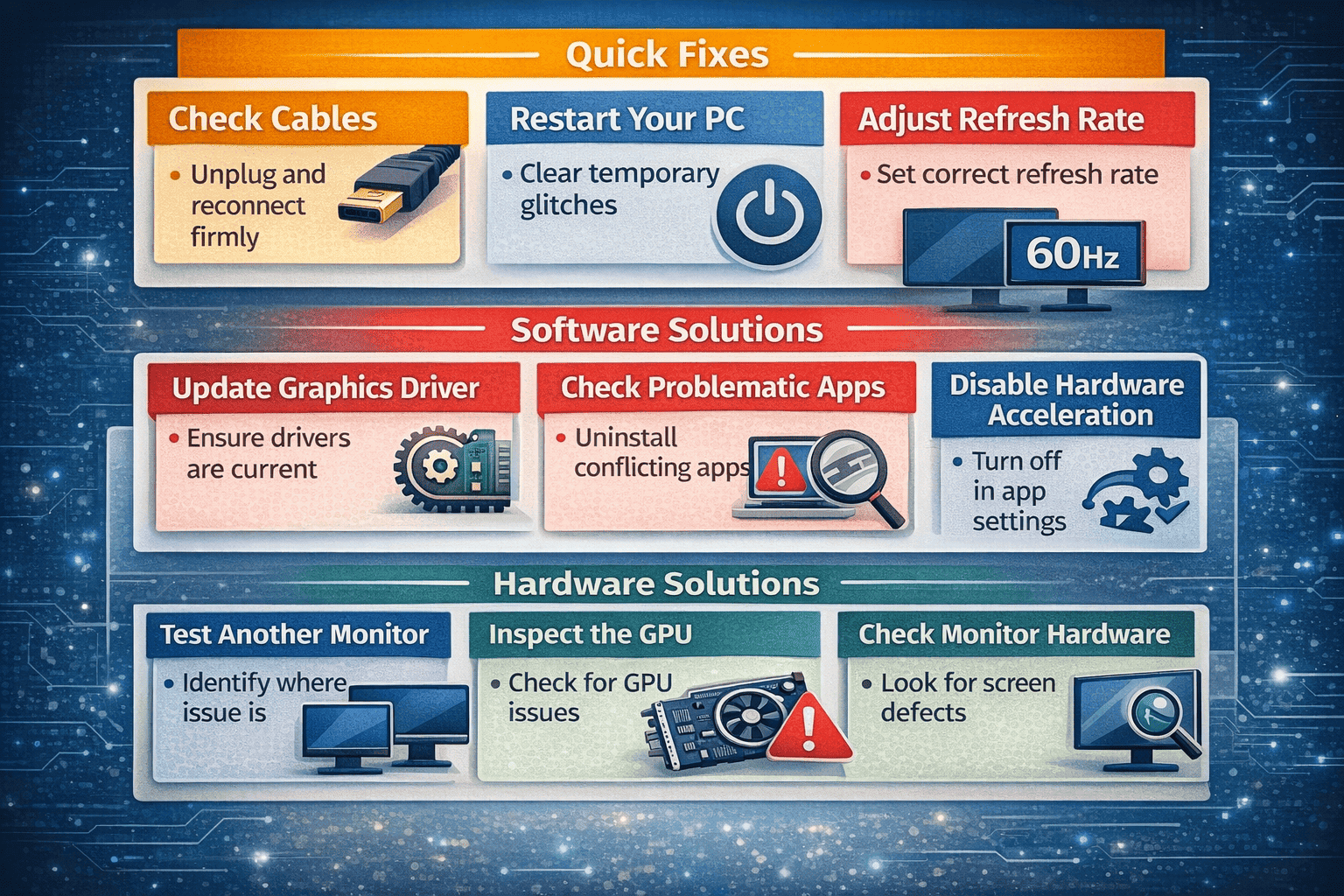
Monitor flickering usually comes down to hardware issues, software glitches, or incorrect display settings. A flickering monitor can be frustrating, distracting, and even harmful to your eyes if left unchecked. This issue is more common than you might think—and in most cases, it’s fixable within minutes.
This guide will walk you through why your monitor is flickering and show you practical, step-by-step solutions to fix it instantly.
What Causes Monitor Screen Flickering?
Before jumping into fixes, it’s important to understand the root of the problem. Screen flickering usually comes down to hardware issues, software glitches, or incorrect display settings.
Common Causes Include:
- Loose or damaged cables
- Incorrect refresh rate settings
- Outdated or corrupted graphics drivers
- Faulty monitor hardware
- Interference from other devices
- Software conflicts or bugs
Once you identify the cause, fixing it becomes much easier.
Quick Fixes to Stop Screen Flickering Instantly
Let’s start with the fastest solutions. Try these first before moving to advanced troubleshooting.
1. Check Your Cables and Connections
A loose or damaged cable is one of the most common reasons for flickering.
What to do:
- Unplug and firmly reconnect your HDMI, DisplayPort, or VGA cable
- Try a different cable if possible
- Switch to another port on your monitor or PC
Even a slightly loose connection can cause intermittent flickering.
2. Restart Your Computer
It sounds simple, but it works more often than you’d expect.
Why it helps:
- Clears temporary system glitches
- Resets display settings
- Stops background processes causing conflicts
If the flickering disappears after restarting, the issue was likely software-related.
3. Adjust the Refresh Rate
An incorrect refresh rate can cause noticeable flickering, especially on modern displays.
Steps (Windows):
- Right-click on desktop → Display settings
- Click “Advanced display settings”
- Choose the correct refresh rate (usually 60Hz, 120Hz, or higher depending on your monitor)
Tip: Always match the refresh rate to your monitor’s specifications.
Fixing Flickering Caused by Software Issues
If basic fixes don’t work, the issue might be deeper in your system settings or drivers.
4. Update Graphics Drivers
Outdated or corrupted drivers are a major cause of display problems.
How to fix:
- Open Device Manager
- Expand “Display adapters”
- Right-click your graphics card → Update driver
You can also download the latest drivers directly from your GPU manufacturer (NVIDIA, AMD, or Intel).
5. Check for Problematic Apps
Some apps can conflict with your display settings and cause flickering.
Common culprits:
- Screen recording software
- Third-party antivirus programs
- Wallpaper or display customization tools
What to do:
- Boot your system in Safe Mode
- If flickering stops, uninstall recently installed apps
6. Disable Hardware Acceleration
Certain applications use hardware acceleration, which can sometimes trigger flickering.
Try this:
- Open your browser or app settings
- Turn off “Hardware Acceleration”
- Restart the application
This is especially useful if flickering occurs only in specific apps.
Hardware-Related Fixes for Screen Flickering
If software isn’t the issue, your hardware might be the cause.
7. Test with Another Monitor
This helps you quickly identify whether the problem is with your monitor or your computer.
- If the second monitor works fine → your original monitor is faulty
- If flickering continues → the issue is with your PC or GPU
8. Check Your Graphics Card
A failing graphics card can cause persistent flickering.
Signs of GPU issues:
- Flickering during gaming or heavy tasks
- Screen artifacts or strange lines
- System crashes
Solution:
- Reseat the GPU (remove and reinstall it)
- Ensure proper cooling and airflow
- Consider replacing it if the problem persists
9. Inspect the Monitor Itself
Sometimes, the monitor is simply wearing out.
Look for:
- Flickering even without a connected PC
- Brightness fluctuations
- Dead pixels or backlight issues
In such cases, repair or replacement may be necessary.
Advanced Fixes (If Nothing Else Works)
If you’ve tried everything above, here are a few deeper solutions.
10. Change Display Resolution
Incorrect resolution settings can cause instability.
Fix:
- Go to Display settings
- Set resolution to “Recommended”
11. Check for Electrical Interference
Nearby devices can sometimes interfere with your monitor signal.
Possible sources:
- Speakers
- Routers
- Fluorescent lights
Move these devices away from your monitor and see if the issue improves.
12. Update Your Operating System
System bugs can also cause display issues.
Solution:
- Check for updates in your OS settings
- Install the latest patches
Updates often include fixes for display and compatibility problems.
How to Prevent Screen Flickering in the Future
Once you fix the issue, it’s smart to prevent it from happening again.
Best Practices:
- Keep your graphics drivers updated
- Use high-quality cables
- Avoid overclocking your GPU unnecessarily
- Maintain proper ventilation for your PC
- Regularly update your operating system
Small habits can save you from bigger problems later.
When Should You Replace Your Monitor?
Not every flickering issue can be fixed.
You should consider replacing your monitor if:
- Flickering happens even without a connected device
- The screen shows permanent damage
- Repairs cost more than a new monitor
Modern monitors are more reliable and energy-efficient, making upgrades worthwhile.
Conclusion: Fix Flickering Fast and Keep Your Display Stable
Monitor screen flickering can seem like a serious issue, but in most cases, it’s easy to fix. From adjusting your refresh rate to updating drivers or checking cables, small changes can make a big difference.
The key is to identify the root cause quickly and apply the right solution.
If you follow the steps in this guide, you’ll not only fix the flickering instantly but also ensure your display stays stable in the long run.